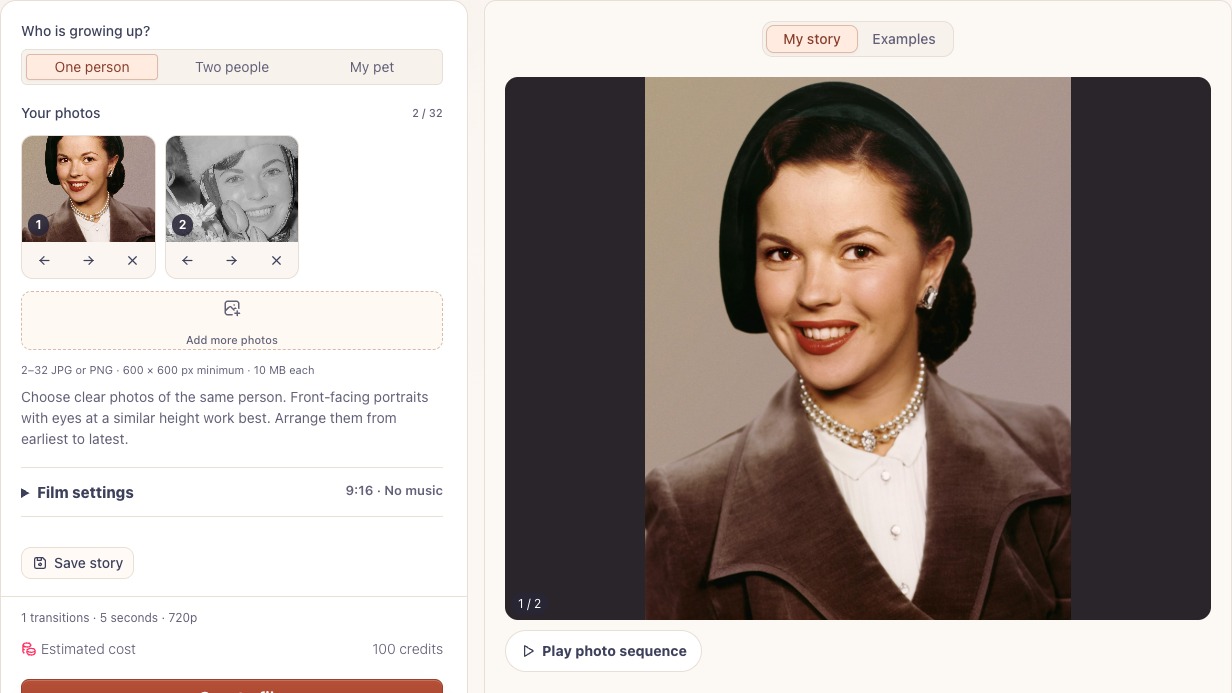
Preview the order of your portraits
My story shows your portraits in the order the growing up video maker will use. If a birthday falls between two school pictures, move it into place before you spend credits.
Choose your photosBring school portraits, birthday snapshots and the smile you still recognize together in a growing up AI video for someone you love.
Compare two ways to tell the same kind of story. The archive sequence cuts between dated portraits; the reference film shows a face changing between ages.
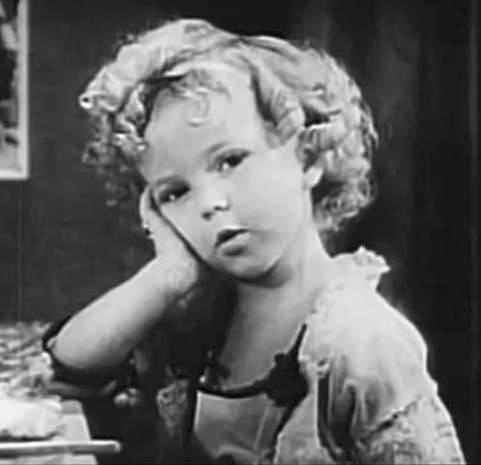
Album timeline
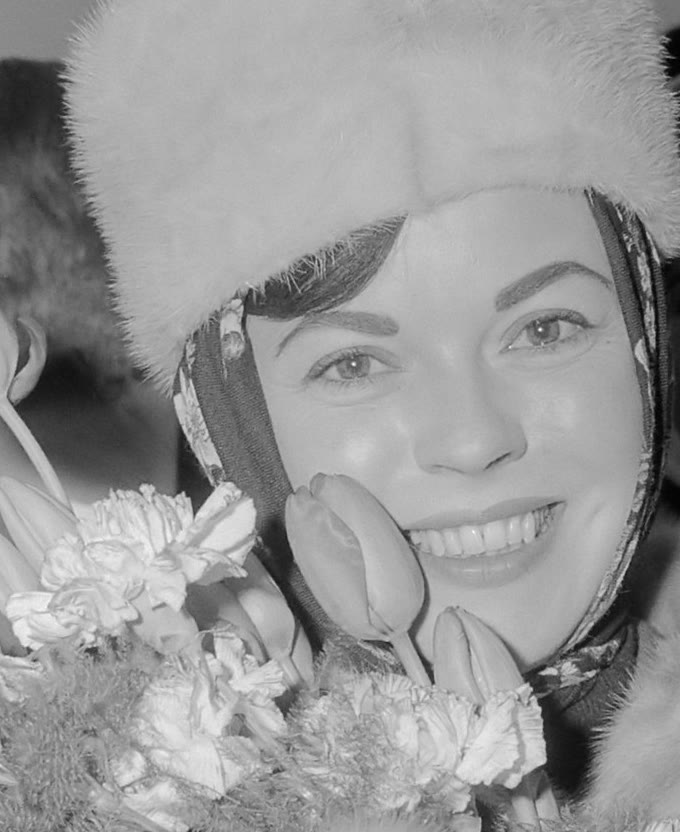
Start in 1933, pause at a teenage portrait from 1943 and finish in 1965.
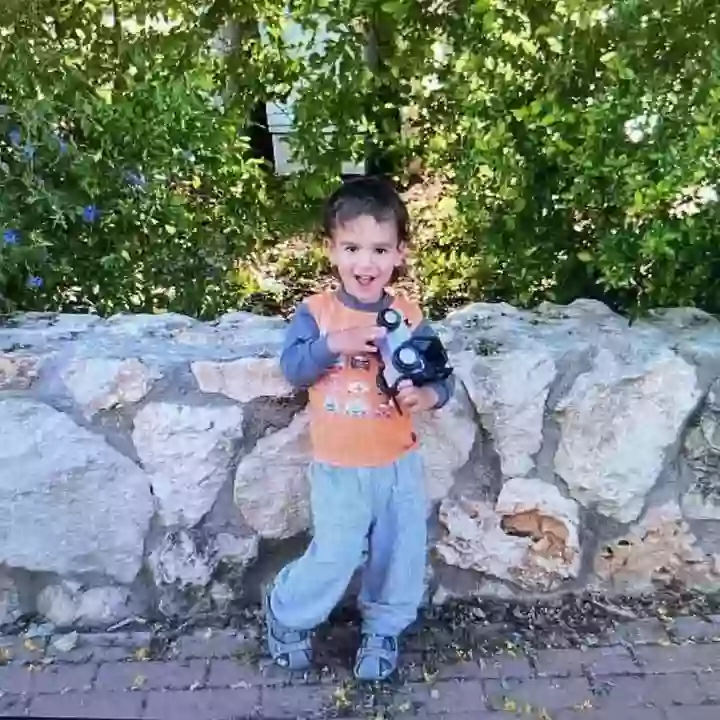
Look for the transition
Look at the cheeks and jaw as one age blends into another. These in-between frames are what distinguish a growing up video maker from a slideshow.
Choose the oldest portrait, the occasion you want to celebrate and a few memorable stages in between.
In the growing up video maker, put the earliest portrait first. Check the middle photos for jumps, like a toddler suddenly appearing after a teenager.
Review each transition before saving the film. For a party, play the finished sequence on the screen your guests will use.
My story shows your portraits in the order the growing up video maker will use. If a birthday falls between two school pictures, move it into place before you spend credits.
Choose your photosA growing up video maker can follow two people across an anniversary album as easily as one child through school. Let the occasion guide which years you include.
Give the growing up video maker a first and last portrait that guests will recognize: the baby in the high chair and the adult cutting the cake.
Choose pictures of the same couple together. Keep each partner on the same side, from their first date to their anniversary.
For a pet, give the growing up video maker a familiar point of reference. A puppy beside the same chair each year makes each growth spurt easier to see.
Pair the first school portrait with the cap and gown. Between them, add the year they lost a front tooth or finally outgrew those glasses.
Look for similar head angles, clear eyes and soft light. An old school picture and a recent portrait often make good endpoints.
Each pair of neighbors in the growing up video maker sets the beginning and end of a clip. Start with the earliest photo to move forward in time, or reverse the order for a birthday rewind.
Scan the print or photograph it straight on in soft light. Crop away the album page, leaving the eyes, chin and hairline in frame.
The archive preview follows Shirley Temple through three dated photographs. It shows the order of the pictures; the separate reference film illustrates the kind of motion a growing up video maker adds between them.
Work backward from the picture you want on screen when the candles come out or the graduate walks in. Give the growing up video maker one portrait per milestone; save the near-duplicates for the printed album.
Choose JPEG or PNG, up to 10 MB per picture and at least 600 pixels on each side. Scan small prints at a higher resolution before cropping.
Choose Two people for portraits of the same pair together, with each person on a consistent side. For pets, keep the eyes and distinctive markings visible.
Match the frame to the screen: portrait for a phone, landscape for a projector, square for a centered composition. Set the shape in the growing up video maker before rendering, especially if two people need to fit side by side.
Choose piano, leave the film silent or upload an MP3 or WAV up to 10 MB. Use music you have permission to share.
The growing up video maker accepts two to 32 photos. Each neighboring pair adds five seconds, so five photos give you about twenty seconds of motion. Use fewer for a quick birthday greeting.
You can redo a single transition in the growing up video maker. Compare the two portraits first: a sideways glance followed by a straight-on shot may be the jump you noticed. Generating a replacement uses credits.
Count the gaps between photos. Four pictures have three gaps, so a first render costs 300 credits at 100 per transition. You can reorder the pictures and check the estimate before rendering.
Use photos you own or have permission to use. Ask the people pictured, including a parent or guardian for anyone under 18.

Take the oldest picture out of the album and give it a place on your timeline.
Open growing up video maker